GSE Smart IPTV: The Ultimate Solution for TV Streaming
Discover our complete guide to GSE Smart IPTV, including installation, setup and use on Android, iOS, Windows and more. Explore the benefits of the Pro version and get tips for an optimal IPTV experience.
GSE Smart IPTV is streaming software for Apple and Android users with devices that have access to the Play Store and the App Store. Its media engine can play almost any type of content. The channel list is organised into categories and the EPG (electronic programme guide) is fully supported.
How to install GSE Smart IPTV on Apple and Android?
From our experience and research, this app is only available on the App Store and the Google Play Store. On Android, only the paid Pro version is available, but on Apple devices you can get both the Pro and the (free) Lite versions. However, we recommend the Pro version, which costs only about $3 – affordable. In return, you get a high-performance app with no ads that runs smoothly.
Warning: Many guides and installation files are available for devices such as the Firestick, claiming to be free copies of the app. These are not official versions, and the file may damage your device. GSE Smart IPTV is only available for devices with direct access to the Apple and Google app stores.
If you do not want to pay for this app, we recommend not using it, as the Lite version may no longer be available in your region.
Installation on Apple
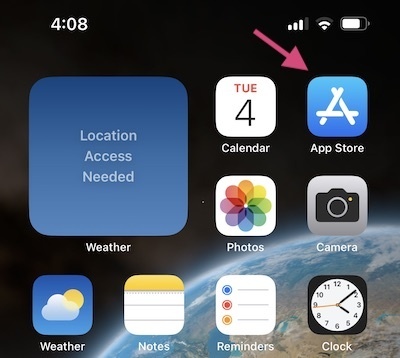
Whether you have an iOS device or a Mac, the installation is the same. In the tutorial below, we use an iOS device.
Open the App Store.
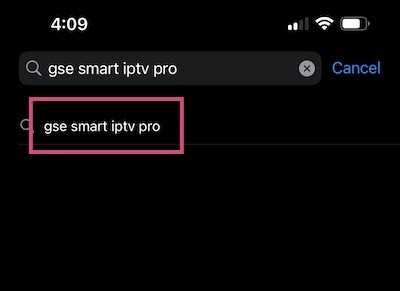
Search for "GSE Smart IPTV Pro" in the search field, then tap it.
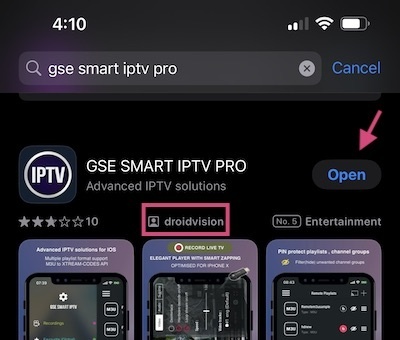
Open the app with "Advanced IPTV Solutions" as its description and Droidvision as its publisher.
The price will be shown, and you will need to buy the app for about $3. After purchase, the button should change to "Install". Once done, you can open the app.
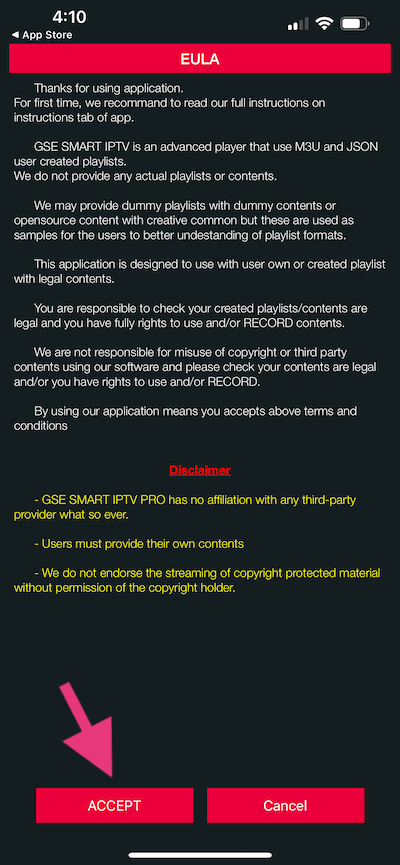
Accept the terms of use to complete the installation.
Installation on Android
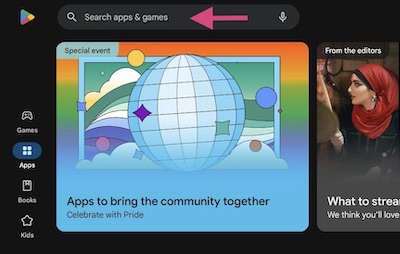
Remember, this is only possible if your Android device has the Play Store.
Open the Play Store and tap the search box.
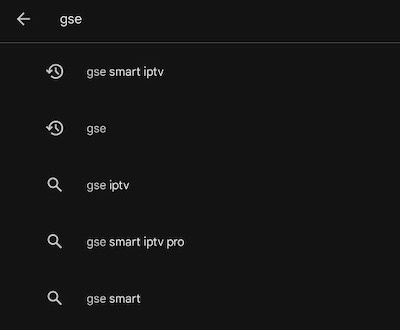
Search for GSE and tap one of the related suggestions.
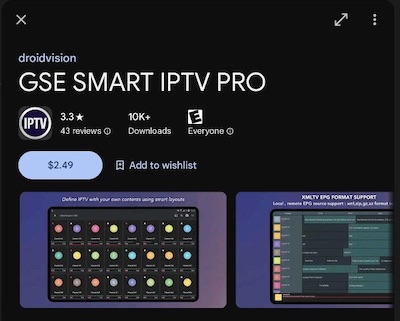
Buy the app: as explained above, choose the Pro version. Remember that the publisher is Droidvision.
Simply tap the price button and buy the app. At this point, the app is installed and ready to use.
Ways to add an IPTV list in GSE Smart IPTV
This app lets users add their streaming list in several ways. Let's look at each method.
Remote lists
This method lets users add the list from a remote server. It imports the data immediately and populates the channel list and EPG automatically. Another advantage of this method is that the channel list and EPG are updated regularly.
Adding an IPTV list using the Xtream Codes API
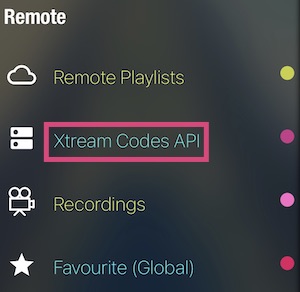
From the left-hand column, tap Xtream Codes API.
Tap the + sign at the top right.
Enter your login details in a few quick steps. We usually provide these details to our customers, whether we send them an IPTV trial or a paid subscription. You can refer to the email you received from us to find and enter these details. If you are reading this article as an outsider, ask your provider to send you the details.
You can enable automatic EPG updates and set the interval between updates. The stream format defaults to MPEGTS, and you can leave it as it is. Once all the details are entered, tap "Login".
The list is added. You can tap it to download the channel list data from the server.
The list is loaded. At the top, the channel list details are shown, while at the bottom we can find the details of our IPTV subscription. You can now tap LiveTV, VOD (which in this app means Movies) or Series, depending on your preferences.
Our channel list is loaded. Let's choose the "Kids" category and see what it looks like.
Picons are loaded for each channel along with the EPG, both pulled from our servers since we have integrated them. Tapping a channel brings up "Play/Record", which starts streaming the channel, or EPG, which loads a schedule of programmes.
This is what streaming looks like when you add the playlist via the Xtream Codes API on GSE Smart IPTV.
Adding an IPTV list using an M3U URL
Choose Remote Playlist; the M3U option is built in.
After tapping the + sign at the top right, tap "Add M3U URL".
Give your playlist a name and paste your M3U URL in the field below. Then tap "Add".
It is best to use the M3U with Options type so your channels are added in categories. The remaining steps are the same as in the previous section. Just open the list and choose the channel you want to stream.
Benefits of using remote playlists in the GSE Smart IPTV app
When you add your streaming list via the Xtream Codes API or an M3U URL, the list can be updated automatically. In other words, changes your provider makes to the service will be reflected in your app.
The EPG will also be detected and added automatically by the app. All you need to do is enable the automatic update feature.
Local playlist in GSE Smart IPTV
The app also lets you upload the playlist locally.
Imagine you want to download the M3U file, rearrange it as you like and then upload it to the app. In this case, the list cannot be added through remote sources, as that would only let the app download the data and store it internally.
There are several ways to use the local method:
Copy and paste: You can open the playlist content on a Pastebin page, then copy and paste it into the field provided.
FTP: Also known as File Transfer Protocol, it lets you transfer the file to the app using FTP software.
HTTP: Lets clients upload the M3U file through a web server interface.
The simplest of the local playlist methods is HTTP upload, which we explain now.
Uploading a streaming file using HTTP playlist upload
From the main dashboard, open "Upload playlist with HTTP".
Enable the web server: GSE Smart IPTV has a built-in web server feature. It lets the IPTV device act as a host so other devices can browse and upload files. Tap the switch to enable the web server.
The web server address is provided. The message at the bottom confirms it is active. The app has now given us a web address and a port. With this, we can connect to GSE Smart IPTV and manage files remotely. Let's try it.
Upload the list through the web server interface: on the device that holds your streaming file, open the web browser of your choice. Type the web server address given earlier. The interface should load as in the image above. You can click "Upload files" to browse for and upload the file you want. You can also drag and drop it into the area shown at the bottom of the image.
The file is uploaded successfully. If you want to know what the buttons do:
The button next to the file name downloads the file again.
The one with a right arrow lets you change the file's location on your IPTV device.
The red button with a bin icon deletes the file.
Now in the GSE Smart IPTV app, go to Local Playlists.
The list is loaded and ready.
Summary
GSE Smart IPTV is a streaming app that lets users watch live TV and video on demand on Apple and Android devices. We recommend buying the Pro version, which costs just under $2.50. Given its reliability, the absence of ads and its better performance, the paid version is worth it.
In the ever-changing world of streaming, GSE Smart IPTV has become an essential app for online TV fans. Whether you are looking for a free or premium version, for mobile or PC, let's explore the different sides of this versatile platform.
What is GSE Smart IPTV?
GSE Smart IPTV is a TV streaming app that gives users access to thousands of channels from around the world. Available on various platforms, it offers a smooth, customisable viewing experience.
GSE Smart IPTV: Free vs Pro version
GSE Smart IPTV
The free version of GSE Smart IPTV already offers many features:
Access to a wide range of channels
Intuitive user interface
Compatibility with several playlist formats
GSE Smart IPTV Pro
For demanding users, GSE Smart IPTV Pro offers extra benefits:
No adverts
Advanced customisation features
Priority support
Download the GSE Smart IPTV APK
For Android users, downloading the GSE Smart IPTV APK is simple:
Visit the official website or a trusted app store
Search for "GSE Smart IPTV APK"
Download and install the app
Warning: Make sure you download the APK from a trusted source to avoid malware.
GSE Smart IPTV for Windows
Although mainly designed for mobile devices, GSE Smart IPTV is also available on Windows:
Use an Android emulator such as BlueStacks
Install the emulator on your Windows PC
Download and install GSE Smart IPTV through the emulator
This method lets you enjoy GSE Smart IPTV on a bigger screen, ideal for an immersive viewing experience.
Conclusion
Whether you choose GSE Smart IPTV, GSE Smart IPTV Pro, or explore the GSE Smart IPTV APK and Windows options, this app offers a complete solution for your TV streaming needs. With its ease of use and wide variety of content, GSE Smart IPTV suits all types of users, from beginners to tech experts.
So, ready to transform your TV viewing experience? Try GSE Smart IPTV today and discover a world of entertainment at your fingertips!