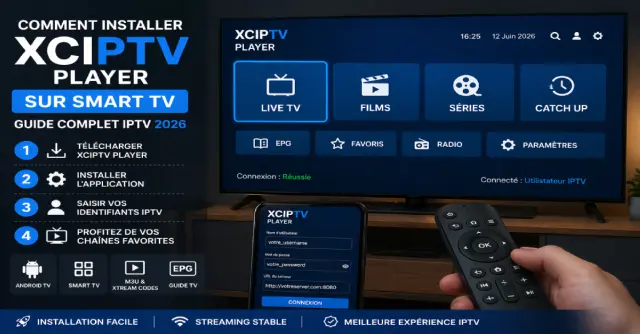
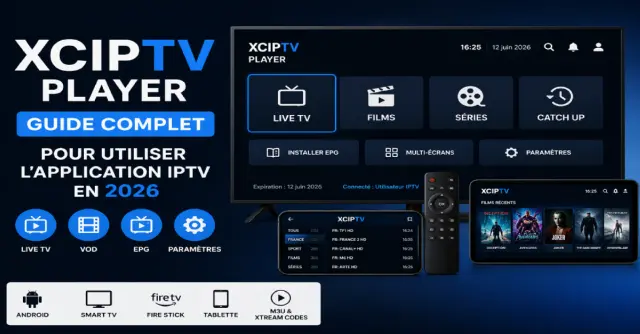
How to Install the Fast IPTV App on Fire TV Stick and Add a Private VPN Server
Learn how to install the Fast IPTV app on Fire TV Stick and set up a VPN for secure streaming. A complete step-by-step tutorial.

Introduction
In this detailed guide, we explore how to install the Fast IPTV Android app on a Fire TV Stick, and how to add a private VPN server to the app. This tutorial is designed to be easy to follow, even for people who are not familiar with technology.
Table of Contents
Section | Content |
|---|---|
1. | |
2. | |
3. | |
4. | |
5. | |
6. | |
7. | |
8. | |
9. | |
10. | |
11. | |
12. | |
13. | |
14. | |
15. |
2. Prerequisites
Before you start, make sure you have:
A Fire TV Stick connected to your TV.
A stable internet connection.
The login details for your IPTV account.
An Amazon account to download the required apps.
3. Installing the Fast IPTV App on Fire TV Stick
4. Step 1: Search for the Downloader App
From your Fire TV Stick dashboard, click the "Search" icon. Press the down arrow to select the search field, then press the centre button on the remote to bring up the virtual keyboard.
5. Step 2: Download and Install the Downloader App
Type "Downloader" in the search field, select it and press the centre button to install it.
6. Step 3: Download the Fast IPTV APK
Open the Downloader app, then enter the URL provided to download the Fast IPTV APK file.
7. Step 4: Allow Installation of Unknown Apps
If you have never installed apps outside the Amazon Appstore, you will need to allow installation of apps from unknown sources. To do this, go to the settings, select "Install unknown apps", then enable this option for the Downloader app.
8. Step 5: Install and Open the Fast IPTV App
Once the APK file has downloaded, follow the on-screen instructions to install the app. When the installation is complete, click "Open".
9. Step 6: Set Up the Fast IPTV App
The first time you open the app, you will need to enter your IPTV account details, such as the username and password provided by your provider. After entering these details, click "Login".
10. Add a Private VPN Server to Fast IPTV
11. Step 1: Download the OpenVPN Certificate File
Go back to the Downloader app and enter the URL to download the OpenVPN certificate file needed to set up the VPN.
12. Step 2: Import the Certificate into the IPTV App
Open the Fast IPTV app, go to the settings, then to the VPN section. Select "Add a Certificate" and choose the downloaded file from the "Downloader" folder in internal storage.
13. Step 3: Connect to a VPN Server
Once the certificate is imported, select it to connect to the VPN server. A notification will confirm that the connection was successful.
14. Security and Privacy
Using a VPN with your IPTV app gives you an extra layer of security by masking your online activity and protecting your personal data. Always make sure you use a trusted VPN to avoid any security risks.
15. Conclusion
With these steps, you have now installed and set up the Fast IPTV app on your Fire TV Stick and added a VPN server for extra security. You are now ready to enjoy your IPTV content with complete peace of mind.