How to Install IPTV on a MAG Device – Complete Guide
Find out how to install your IPTV subscription on a MAG device easily with our detailed guide. Follow the steps for a successful setup.
Outline:
Heading | Subheading |
|---|---|
1. Introduction | - Define the topic and why it matters |
2. Preparation | - Check your IPTV subscription |
3. Initial setup of the MAG device | - Access the main menu |
4. Installing the IPTV subscription | - Access the IPTV settings |
5. Troubleshooting | - Check the internet connection |
6. Practical tips | - Using additional features |
7. Conclusion | - Summary of key points |
Suggestions for images or infographics:
Screenshot of the MAG device main menu
Diagram of the IPTV settings
Infographic on the troubleshooting steps
Suggestions for external sources:
Official websites of MAG device manufacturers
IPTV technical support forums
Blog articles specialising in IPTV
Installing an IPTV subscription on a MAG device may seem complex, but by following the right steps it becomes a simple process. This article guides you through each step of the installation and gives you practical tips to make sure everything works perfectly.
1. Introduction
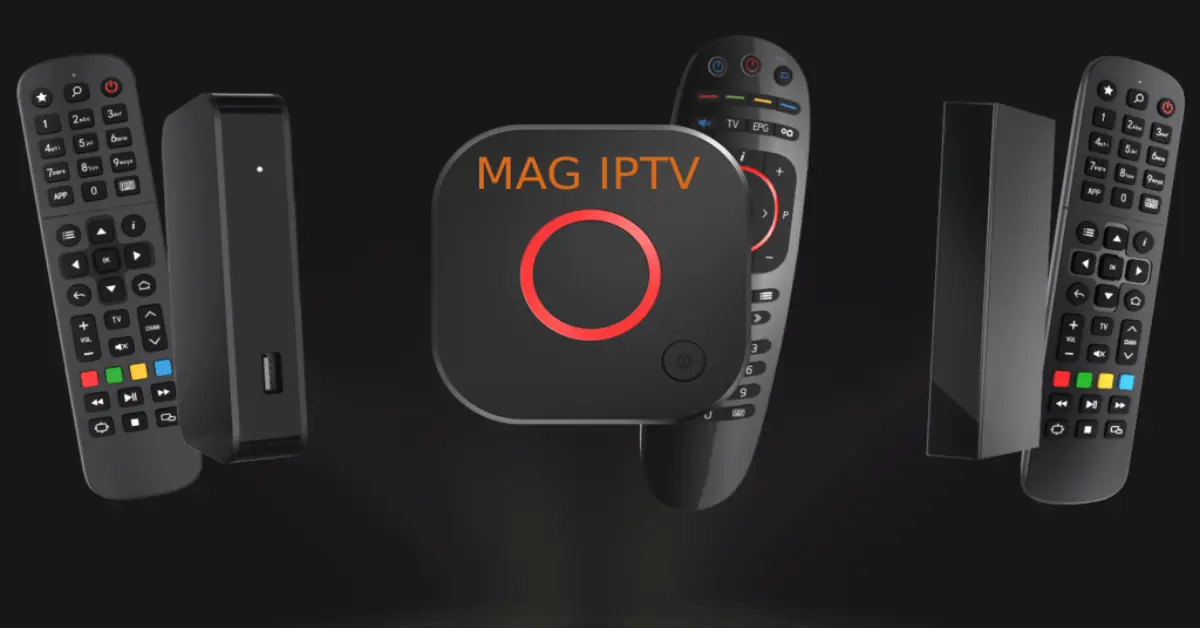
IPTV (Internet Protocol Television) lets you watch TV channels using an internet connection rather than a traditional aerial or cable. MAG devices are popular IPTV set-top boxes that make this transition easy. This article covers the essential steps for installing your IPTV subscription on a MAG device.
2. Preparation
2.1 Check your IPTV subscription
Before installing anything, make sure your IPTV subscription is active and that you have all the necessary information, such as server addresses, usernames and passwords.
2.2 Prepare your MAG device
Make sure your MAG device is properly connected to your TV and your internet connection. Also check that you have a working remote control.
3. Initial setup of the MAG device

3.1 Access the main menu
Turn on your MAG device and open the main menu using the remote control provided.
3.2 Network settings
Open the network settings to check that your MAG device is connected to the Internet. You can usually do this by going to "Settings" and then "Network".
3.3 Firmware update
It is recommended to check whether a firmware update is available. This can fix potential issues and improve the device's performance.
4. Installing the IPTV subscription
4.1 Access the IPTV settings
In the main menu, look for the "Portal" or "IPTV Settings" option. This is where you will enter the information provided by your IPTV provider.
4.2 Set up the IPTV portal
Enter the IPTV portal address provided by your provider. Make sure the address is correct and matches what was provided with your subscription.
4.3 Enter your login details
Enter the username and password provided. This information is essential for accessing your IPTV subscription.
4.4 Save and restart
Once you have entered all the information, save the settings and restart your MAG device. This lets the device connect to the IPTV server and load the channels.
5. Troubleshooting
5.1 Check the internet connection
If you run into problems, check your internet connection. An unstable connection can cause service interruptions.
5.2 Reconfiguration
If the settings do not work as expected, try setting up the IPTV portal again and check that all the information is correct.
5.3 Technical support
If the problems persist, contact your IPTV provider's technical support. They can help you solve the specific problems you are facing.
6. Practical tips
6.1 Using additional features
Explore the additional features of your MAG device, such as recording programmes and managing favourites.
6.2 Regular updates
Make sure you update your MAG device's firmware regularly to benefit from the latest improvements and bug fixes.
7. Conclusion
Installing an IPTV subscription on a MAG device is a relatively simple task if you follow the steps correctly. By preparing and setting up your device properly, you will be able to enjoy your IPTV channels without any problems.
FAQ
Where can I find the portals?
Our team will send you the portals by email or WhatsApp after your order.